




Have you ever panicked thinking someone else might be watching your Disney+ account?
Maybe you left your login on a hotel TV, shared it with a friend to watch anime, or simply want to reclaim control across all devices. That’s exactly why the Global Logout feature is a lifesaver. In just a few steps, you can sign out of Disney+ on every device, protect your account, and even reset offline downloads.
In this logout guide, you’ll learn exact step-by-step instructions for every major TV brand and streaming device, how to log out remotely from other devices, manage multiple profiles and troubleshoot common issues.
Logging Out Disney Plus Across All Devices Remotely
For instance, if you’ve lost your phone, stayed at an Airbnb, or just want to kick everyone off your account at once, the Global Logout is your most powerful tool.
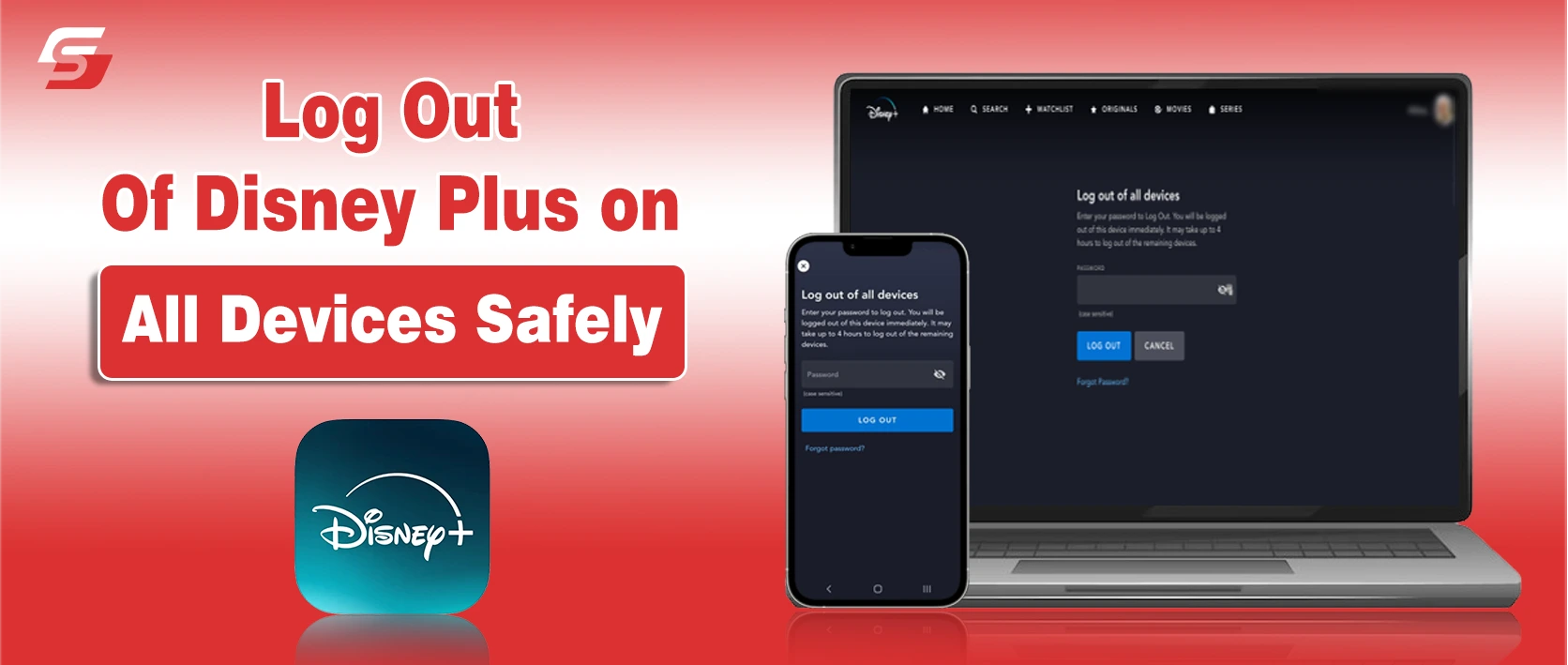
Step-by-Step: The Browser Method
Don’t bother trying this on a TV or Gaming Console; those apps are built for viewing, not account security. Use a mobile or desktop browser (Chrome, Safari, or Edge) for the best results.
- Access the Portal: Navigate to disneyplus.com and log in.
- Enter Account Settings: Click your Profile Icon (the character avatar) and select Account.
- Manage Devices: Find the Access & Security section and click on Log out of all devices.
- The Security Gate: You will be asked to enter a 6-digit verification code sent to your registered email.
- Confirm the Kick: Once verified, click Log Out.
Expert Caveat: The 4-Hour Rule
While your current browser session ends immediately, other devices (like Smart TVs currently streaming) may take up to 4 hours to take effect. It will also automatically delete all offline downloads on any mobile devices associated with the account.
Mastering the “Big Screen” Exit: TV Platforms Guide
While the Disney+ “sidebar” UI looks identical across devices, brands like Samsung and LG handle app caching and memory differently.
Because of these technical differences, we have broken down the specific logout steps for each major TV brand below. You can use the same process to log out of Netflix on the same device if needed.
Samsung Smart TVs (Tizen OS)
- Open sidebar: Press Left on your remote while inside the Disney+ app.
- Select Settings: Navigate to the bottom and click the Gear Icon.
- Account: Navigate to the Account section.
- Log Out: Select the Logout option and confirm the prompt.
LG Smart TVs (webOS)
- The Left Rail: Press the Left arrow on the remote to access the sidebar.
- Gear Symbol: Navigate down to Settings.
- Identity Management: Select Account and then Log Out.
Vizio Smart TVs (SmartCast)
- Menu Access: Press the Left button on the Vizio remote to open the Disney+ sidebar.
- System Settings: Scroll down to the Settings gear icon.
- Sign Out: Select Log Out at the bottom of the list and confirm.
Pro-tip: Since Vizio SmartCast doesn’t “store” apps locally like a hard drive, a simple logout is usually sufficient. However, if you’re at an Airbnb, it’s best to also “Reset SmartCast” in the TV’s system menu to be safe.
TLC, Sony, & Hisense (Google TV / Android TV)
These devices use the unified Google TV layer. The logout is often tied to your Google Account “handshake.”
- Sidebar: Move Left on your remote to open the main Disney+ navigation menu.
- Settings: Navigate down to the Gear Icon at the bottom of the list.
- The “Exit” Command: Under the Account section, select Log Out and confirm.
Sing Out Disney Plus on Streaming Devices
Below are the detailed steps you can follow for logging out Disney+ across different streaming devices.
Amazon Fire TV (Stick, Lite, & Cube)
Fire TV runs on a modified Android system, so Disney+ may stay active in the background even after you sign out.
- Open Sidebar: Press the Left button on your Fire TV remote from the Disney+ home screen.
- Settings Gear: Scroll to the bottom and select Settings.
- Account Section: Navigate to Account and click it.
- Confirm Logout: Select Log Out and confirm on the final prompt.
Roku (Express, Stick, & Ultra)
Roku’s simple interface makes signing out straightforward.
- Left Rail: Use the Roku remote’s Left arrow to open the main navigation menu.
- Settings: Scroll down to the Gear Icon.
- Direct Logout: Select Log Out at the bottom of the Settings list and confirm.
Pro-tip: If you are billed through Roku Pay, logging out will not cancel your Disney+ subscription. Also, if Automatic Sign In is enabled, Roku tv may log you back in. Use Guest Mode when sharing the device to prevent this.
| Device | Logout Path | Notes / Pro-Tips |
| Samsung TV | Sidebar → Settings → Account → Log Out | Soft reset if profile still appears |
| LG TV | Sidebar → Settings → Account → Log Out | Switch to Main Profile if in Kid’s mode |
| Fire TV | Sidebar → Settings → Account → Log Out | Clear Data if giving device away |
| Roku | Sidebar → Settings → Log Out | Guest mode prevents auto-login |
| Apple TV | Sidebar → Profile → Log Out | Ensure Home Sharing isn’t auto-authenticating |
Logging Out Disney Plus on Gaming Consoles
Gaming consoles treat Disney+ as a standalone media app. To exit, you must navigate the internal app settings rather than the console’s dashboard.
PlayStation 4 & PlayStation 5
- Open Sidebar: Press Left on your controller to open the navigation rail.
- Settings: Scroll to the bottom and select the Gear Icon.
- Sign Out: Select Account > Log Out.
- Confirm: Select Log Out again to finalize.
Xbox Series X | S & Xbox One
- Open Sidebar: Use the D-Pad or Left Stick to move to the left-hand menu.
- Settings: Scroll down to the Gear Icon.
- Account list: Select Log Out from the Account list.
- Confirm: Select Log Out once more on the confirmation screen.
Logging Out on US Cable & Integrated Boxes
Streaming Disney+ through a cable box is different because the hardware is integrated with your provider’s identity system. Use these specific brand steps to clear your session.
Xfinity (X1, Flex, and Xumo Stream Box)
- The App Path: Open Disney+ and press Left to reveal the sidebar.
- Select Settings: Scroll to the bottom and click the Gear Icon.
- End session: Select Account and click Log Out.
Spectrum (Spectrum Guide & Xumo Stream Box)
- Open Sidebar: Open Disney+ and press the Left arrow.
- Access Settings: Scroll to the bottom and select the Gear Icon.
- App Logout: Select Log Out and confirm the prompt.
- Home Screen: Press the Home button and navigate to Settings.
- Deauthorize: Go to Accounts > Disney+ and select Remove Account.
Troubleshooting: When the “Logout” Doesn’t Stick
You hit the logout button, but the profile remains. We’ve been there. These “Ghost Sessions” are a common byproduct of how modern apps store data to reduce loading times. If the standard exit fails, use these surgical fixes.
1. The “Cache Ghost” (Smart TVs & Firesticks)
Most Smart TVs (Samsung Tizen, LG webOS) use cache aggressively. The app might be logged out on Disney’s servers, but your TV is still showing a “stored image” of your account.
The Fix: Do a hard-reboot by unplugging your TV or streaming stick for 60 seconds. This flushes the RAM and forces the Disney+ app to check its “authorization token” against the server again.
2. The Third-Party “Provider Handshake”
If you access Disney+ streaming platform through an Xfinity, Sky, or Roku bundle, the device often uses “Seamless Sign-on.” This means the device itself is “vouching” for your identity.
The Fix: You may need to log out of the Service Provider’s app on the device first. If the hardware is tethered to your billing account, a simple app-level logout won’t always break the link.
3. The “Infinite Loading” Glitch
Sometimes the “Confirm Logout” button stays grayed out or spins indefinitely. This is usually a handshake error between your local IP and Disney’s Edge Compute servers.
The Fix: Briefly toggle your phone to Mobile Data (LTE/5G) if you are using the web portal. By switching networks, you bypass potential DNS hangs on your home Wi-Fi that are preventing the logout command from being sent.
People Also Ask
No, logging out only ends your current session; your billing and account status remain active.
You can be logged into up to 10 devices, but simultaneous streaming is limited to 2 or 4 screens, depending on your plan.
Yes, because of the unified MyDisney login, a global logout will sign you out of the entire Disney ecosystem.
Yes, for security and licensing reasons, logging out of the app automatically removes any offline downloaded content.
Yes, you must use the “Manage Devices” tool on a web browser to select and “kick” a specific individual hardware session.
Final Thoughts
Logging out should be a simple “goodbye,” not a technical chore. Whether you’re securing your MyDisney account from a distance or just handing back a rental TV, taking these extra steps ensures your viewing history and subscription remain only yours.
Technology is designed to keep you logged in for convenience, but your privacy matters more than a “quick start” feature. By using the global logout and understanding the 4-hour propagation window, you can clear your digital footprint easily.