


Close Menu
StuffaBlog – Entertainment, Celebrity & Lifestyle News
  • Trending News
    • Tech News
    • Environment
  • Business
    • Startup
    • Marketing
    • Cryptocurrency
    • eCommerce
    • Finance
    • Real Estate
      • Commercial Real Estate
      • Home Improvement
        • Home Decor
    • Inventory Management
    • Management & Leadership
  • Tech
    • Gadgets
      • Laptops
      • Smartphones
      • Computers
    • AI & ML
    • IoT
    • Software
    • Apps
      • App Development
    • Automobiles
  • Digital Marketing
    • Social Media
      • Youtube
      • Instagram
      • Facebook
      • TikTok
      • Snapchat
    • SEO
    • Blogging
      • Web Design
      • Web Development
    • Email Marketing
    • Content Marketing
  • Entertainment
    • Gaming
      • Games
      • Mobile Games
    • Movies and TV Shows
    • Celebrities Gossip
    • Sports
    • Fashion
  • Health
    • Fitness
    • Lifestyle
    • Health and Safety
    • Insurance
    • Mental Health
      • Wellness and Self-Care
  • Travel
    • Europe
    • Asia
    • Travel Tips and Hacks
      • Family Travel
      • Solo Travel
      • Budget Travel
      • Adventure Travel
    • Travel Destinations
    • Travel Itineraries
  • How-to Guides
  • More
    • Net Worth
    • Top 10
    • Reviews
      • Alternatives
      • Tools
    • Sponsored Content
  • Real Estate Investments
  • Parties
  • Books and Literature
  • Google
  • Healthy Recipes
  • Food

Subscribe to Updates

Get the latest creative news from FooBar about art, design and business.

What's Hot
Taylor Swift Supports New York Knicks At NBA Finals Game Four featured banner for Stuffablog.com.

Taylor Swift Cheers Courtside as New York Knicks Secure Historic Finals Victory

June 11, 2026
Angelina Jolie’s Daughter Zahara Petitions Court to Drop the Pitt Surname featured banner for Stuffablog.com.

Zahara Jolie Pitt Files Legal Petition as Third Sibling to Drop Father’s Last Name 

June 10, 2026
Justin Trudeau and Katy Perry posing at the Tribeca Festival featured banner for Stuffablog.com.

Katy Perry and Justin Trudeau Confirm Romance at Tribeca Festival Red Carpet Debut 

June 9, 2026
Facebook X (Twitter) Instagram
Trending
  • Taylor Swift Cheers Courtside as New York Knicks Secure Historic Finals Victory
  • Zahara Jolie Pitt Files Legal Petition as Third Sibling to Drop Father’s Last Name 
  • Katy Perry and Justin Trudeau Confirm Romance at Tribeca Festival Red Carpet Debut 
  • The Last of Us Season 3 Production Halts In Vancouver Until Late June
  • Why Tri-Merge Credit Reports Are Key To Financial Success
  • Taylor Swift Locks Iconic Madison Square Garden for Massive Summer Wedding
  • Madonna Previews New Album During Surprise Pride Show in Times Square
  • TV producer Andy Cohen Celebrates 58th Birthday with His Rumored partner Kevin Sobieski
StuffaBlog – Entertainment, Celebrity & Lifestyle News
  • Home
  • About us
  • Contact us
Facebook X (Twitter) Instagram Pinterest YouTube LinkedIn
  • Home
  • Entertainment
  • Celebrities
    • Actors
    • Musicians
    • Influencers
  • Net Worth
    • Music Wealth
    • Film Wealth
    • Athletes Wealth
    • Digital Wealth
  • Lifestyle
    • Travel
  • Trending News
    • Celebrity News
    • Industry News
    • Awards
StuffaBlog – Entertainment, Celebrity & Lifestyle News
Home»Articles»How-to Guides»How to Connect Roku Remote to TV: Setup & Troubleshooting Guide
How-to Guides

How to Connect Roku Remote to TV: Setup & Troubleshooting Guide

Muhammad NomanBy Muhammad NomanFebruary 28, 2026Updated:March 30, 2026No Comments6 Mins Read
Facebook Twitter Pinterest LinkedIn Tumblr Email
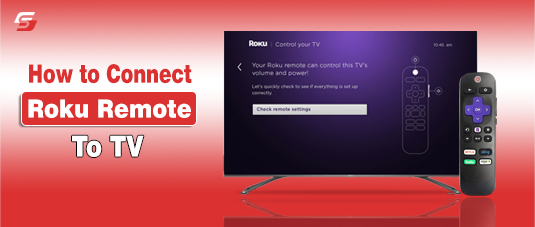
Roku remote connecting to TV during setup and pairing process
Step-by-step guide to connect your Roku remote to any TV
Share
Facebook Twitter LinkedIn Pinterest Email Copy Link
Table of Content
  1. Types Of Roku Remotes and TV Compatibility
    1. Identifying Your Remote
  2. How to Connect Roku Remote to TV?
  3. Setting Up Different Types of Roku Remotes
  4. Step-by-Step Roku Remote Pairing Process
  5. Troubleshooting Roku Remote Connection Issues
  6. FAQs On Roku Remote Connection

I was trying to watch my favorite show on Roku TV when I realized my Roku remote wouldn’t work. I wasn’t able to tell if it was the batteries, the pairing, or something else. During the process of figuring it all out, I learned how to connect any Roku remote, Infrared, Voice Remote, or Voice Remote Pro, and solve common issues along the way.

In this troubleshooting guide, I’ll explain how to pair different types of Roku remotes, connect them to Roku TVs or Smart TVs, and fix common issues when the remote stops responding.

Types Of Roku Remotes and TV Compatibility

Roku remotes come in different types, and knowing which one you have is key when connecting a Roku remote to a TV or pairing it with a Roku device.

  • Infrared (IR) Remote – Works only when pointed directly at the Roku TV or streaming device. No pairing button is needed.
  • Bluetooth / Wi-Fi Direct Remote – Connects wirelessly and includes a pairing button inside the battery compartment or on the back. These remotes don’t require line of sight.

Compatibility:

Sometimes a Roku remote may fail when connecting to a Roku TV or syncing with a streaming device.

  • For standard TVs, the remote works only when paired with a Roku streaming device (like Roku Stick, Express, or Ultra) connected via HDMI.
  • Roku Voice Remotes can also control TV power and volume for supported TV brands.

Identifying your remote type ensures you follow the correct pairing method and avoid connection issues.

Identifying Your Remote

  • If it works only when pointed at the TV → IR remote.
  • If it pairs without line of sight and supports voice → Bluetooth/Wi-Fi Direct remote.

How to Connect Roku Remote to TV?

Connecting a Roku remote depends on whether you have a Roku TV or a standard Smart TV with a Roku streaming device.

For Roku TV:

  1. Turn on your Roku TV.
  2. IR Remote: Point it directly at the TV, connection is instant.
  3. Voice Remote / Bluetooth Remote: Press and hold the pairing button inside the battery compartment until the LED flashes.
  4. Follow the on-screen instructions to complete pairing.

For Standard Smart TV with Roku Device:

  1. Plug the Roku streaming device (Stick, Express, or Ultra) into the TV’s HDMI port and connect it to power.
  2. Turn on the TV and select the correct HDMI input.
  3. The remote may pair roku remote to tv automatically. If not, press and hold the pairing button until the LED flashes.
  4. Wait for the on-screen confirmation to complete the setup.

This method ensures your remote communicates correctly with the Roku system for instant control.

Setting Up Different Types of Roku Remotes

Roku remotes come in three main types: Infrared (IR) Remotes, Roku Voice Remotes, and Roku Voice Remote Pro / Simple Remotes. Each type pairs differently:

  • IR Remote: Requires line of sight to the Roku TV or device. No Wi-Fi or Bluetooth needed.
    Setup: Point the remote at the TV/device and press any button to confirm it responds.
  • Roku Voice Remote: Pairs via Bluetooth or Wi-Fi Direct, works without line of sight, and supports voice search, private listening, and shortcut buttons.
    Setup: Turn on the Roku TV/device, press and hold the pairing button in the battery compartment until the LED flashes, then confirm pairing on-screen.
  • Roku Voice Remote Pro / Simple Remote:
    • Simple Remote: IR-based, set up like a standard IR remote.
    • Voice Remote Pro: Uses Bluetooth/Wi-Fi Direct; hold the pairing button until the LED flashes and follow the on-screen confirmation.

This streamlined setup ensures each remote connects correctly without confusion, whether you have a basic IR remote or an advanced voice-enabled model.

Step-by-Step Roku Remote Pairing Process

Roku remotes can pair with your TV or streaming device automatically during setup or manually if needed. Automatic pairing is quick, while manual pairing is helpful when replacing a remote or reconnecting after a disconnection.

Automatic Pairing Method:

  1. Power on your Roku TV or streaming device.
  2. The remote automatically sends a pairing signal.
  3. Wait for on-screen confirmation that pairing is complete.

Manual Pairing Method:

  1. Locate the pairing button (inside the battery compartment or on the back of the remote).
  2. Press and hold the button until the LED flashes (about 5 seconds).
  3. Wait for the on-screen confirmation that the remote is paired.

This process works for all Roku remotes, ensuring quick and reliable connection without repeated troubleshooting.

Troubleshooting Roku Remote Connection Issues

Sometimes a Roku remote may fail to connect to your Roku TV or streaming device. Common causes include dead batteries, blocked IR signals, lost pairing, or hardware issues. Here’s how to fix it:

After Replacing Batteries:

  • Press and hold the pairing button until the LED flashes.
  • Wait for the on-screen confirmation to reconnect the Roku remote to your TV.

If the Pairing Button Isn’t Working:

  • Reset the remote by removing and reinserting the batteries, then restart your Roku device.
  • If the button is damaged, use the Roku mobile app or replace the remote.

Connecting Without a Pairing Button:

  • IR remotes connect by pointing directly at the Roku device.
  • For remotes requiring pairing, the Roku mobile app can act as a temporary remote until replacement.

These steps ensure your Roku remote stays connected and fully functional.

FAQs On Roku Remote Connection

Can you connect your Roku device without a remote?

A Roku device can connect without a remote if you use the Roku mobile app or a universal remote programmed for Roku functions. The app works over Wi-Fi, while a universal remote uses infrared signals.

How do you use the Roku mobile app as a remote?

The Roku mobile app works as a remote when you download it on a smartphone, connect the phone to the same Wi-Fi network as the Roku device, and select the device from the app. The app includes directional controls, voice commands, and a keyboard for easy navigation.

Is there a way to pair a Roku remote without Wi-Fi?

A Roku remote with infrared does not require Wi-Fi to connect, since it works by line of sight. A Roku Voice Remote or Pro remote usually needs Wi-Fi Direct for pairing, but in the absence of Wi-Fi, you can use the Roku mobile app with a local network or an IR universal remote as alternatives.

Share. Facebook Twitter Pinterest LinkedIn Tumblr Email
Previous ArticleHow Will Patton Net Worth Was Built | Stage, Screen & Voice Work
Next Article How Security Operations Improve Productivity and Reduce Cyber Risk
Muhammad Noman

Muhammad Noman is a professional content writer with 3 years of experience crafting clear, engaging, and well-researched articles across diverse niches. He focuses on creating helpful, reader-centered content that aligns with user intent and current search trends. His expertise includes entertainment writing, tech reviews, informative guides, and celebrity biographies, ensuring every piece is thoughtfully written and highly discoverable online.

Related Posts

Illustration of an indoor Navigation Maps for Building
Business

How to Create Effective Indoor Navigation Maps for Your Commercial Building?

By Toby NwazorMay 18, 2026
How to Login to MySDMC SSO?
Educational Resources

How to Login to MySDMC SSO Portal (Complete Guide 2026)

By Fawad MalikApril 16, 2026
A person editing a video on a laptop at a desk, with social media icons floating around, a camera on a tripod, ring light, mug, notebook, pen, and plant, against a red gradient background.
How-to Guides

Beginner’s Guide to Video Editing for Social Media

By Toby NwazorApril 7, 2026
How to watch Netflix on Apple CarPlay screen using a car infotainment system
Entertainment

How to Play Netflix on Apple CarPlay Using AI Boxes or Mirroring

By Muhammad NomanMarch 24, 2026
Child using tablet with streaming app safety icons and parental controls
How-to Guides

How to Choose a Streaming App for Kids: Parental Controls & Content Filters

By Hammad AliMarch 1, 2026
Showing mobile screen and Laptopscreen the options of disney log out safely.
Entertainment

How to LogOut of Disney Plus on TV Safely Without Losing Your Data

By Muhammad NomanFebruary 27, 2026
Add A Comment

Comments are closed.

Don't Miss
Taylor Swift Supports New York Knicks At NBA Finals Game Four featured banner for Stuffablog.com.

Taylor Swift Cheers Courtside as New York Knicks Secure Historic Finals Victory

By Fawad MalikJune 11, 2026

In the Spotlight Pop star Taylor Swift attended the Knicks game last night and quickly…

Angelina Jolie’s Daughter Zahara Petitions Court to Drop the Pitt Surname featured banner for Stuffablog.com.

Zahara Jolie Pitt Files Legal Petition as Third Sibling to Drop Father’s Last Name 

June 10, 2026
Justin Trudeau and Katy Perry posing at the Tribeca Festival featured banner for Stuffablog.com.

Katy Perry and Justin Trudeau Confirm Romance at Tribeca Festival Red Carpet Debut 

June 9, 2026
The Last of Us Season 3 June Filming Hiatus Details Revealed featured banner for Stuffablog.com.

The Last of Us Season 3 Production Halts In Vancouver Until Late June

June 8, 2026
Top Posts
How to Become Famous

How to Become Famous? Top 10 Ideas to Start

January 31, 2025
What is a salary package breakdown including basic salary, allowances, bonuses and benefits

What is a Salary Package? Structure, Calculation and Example

March 26, 2026
Top 12 Most Popular TV Shows of All Time

Top 12 Most Popular TV Shows of All Time

February 1, 2026
Net Worth

Net Worth Overview and How to Calculate It

February 4, 2026
Stay In Touch
  • Facebook
  • Twitter
  • Pinterest
  • Instagram
  • YouTube
  • Vimeo

Subscribe to Updates

Get the latest creative news from SmartMag about art & design.

About Us
About Us

At StuffaBlog, we cover celebrity news, entertainment updates, and net worth stories across film, music, sports and digital media. From actors and musicians to influencers, awards, movies, streaming, and lifestyle, it’s all here in one place.

Facebook X (Twitter) Pinterest YouTube WhatsApp
Our Picks
Taylor Swift Supports New York Knicks At NBA Finals Game Four featured banner for Stuffablog.com.

Taylor Swift Cheers Courtside as New York Knicks Secure Historic Finals Victory

June 11, 2026
Angelina Jolie’s Daughter Zahara Petitions Court to Drop the Pitt Surname featured banner for Stuffablog.com.

Zahara Jolie Pitt Files Legal Petition as Third Sibling to Drop Father’s Last Name 

June 10, 2026
Justin Trudeau and Katy Perry posing at the Tribeca Festival featured banner for Stuffablog.com.

Katy Perry and Justin Trudeau Confirm Romance at Tribeca Festival Red Carpet Debut 

June 9, 2026
Most Popular
Stream4u

Stream4u Review 2026: Features, Safety, Legality & Alternatives Explained

April 20, 2026
Illustrated characters networked together on a red background for an article explaining the definition of genre.

What Is Genre? Definition, Types, and Examples

April 11, 2026
How to watch Netflix on Apple CarPlay screen using a car infotainment system

How to Play Netflix on Apple CarPlay Using AI Boxes or Mirroring

March 24, 2026
  • Home
© 2006 - 2026 Stuffablog.com - All rights reserved.

Type above and press Enter to search. Press Esc to cancel.