





Netflix is one of the world’s most popular streaming platforms, letting millions of people watch movies, TV series, and original programs on demand.
I’ve been using Netflix for years, and one thing’s clear: this streaming platform is simple at first glance, but it really shines once you know all the tricks. From setting up accounts and profiles to finding hidden gems, managing downloads, and tackling common errors, there’s a lot that can make your experience smoother.
In this guide, I’ll share everything I’ve learned, including tips for using Netflix on any device and keeping your account secure. By the end, you’ll be able to navigate Netflix like a pro, customize your experience, and fix issues fast, so you can focus on the best part: enjoying your favorite shows and movies without interruptions.
Getting Started With Netflix
Netflix is an online streaming platform operated by Netflix, Inc.The service delivers movies, TV series, and original programs through internet-connected devices such as smartphones, computers, smart TVs, and gaming consoles.
How to Create a Netflix Account?
Creating an account provides access to the streaming library and allows multiple viewer profiles.
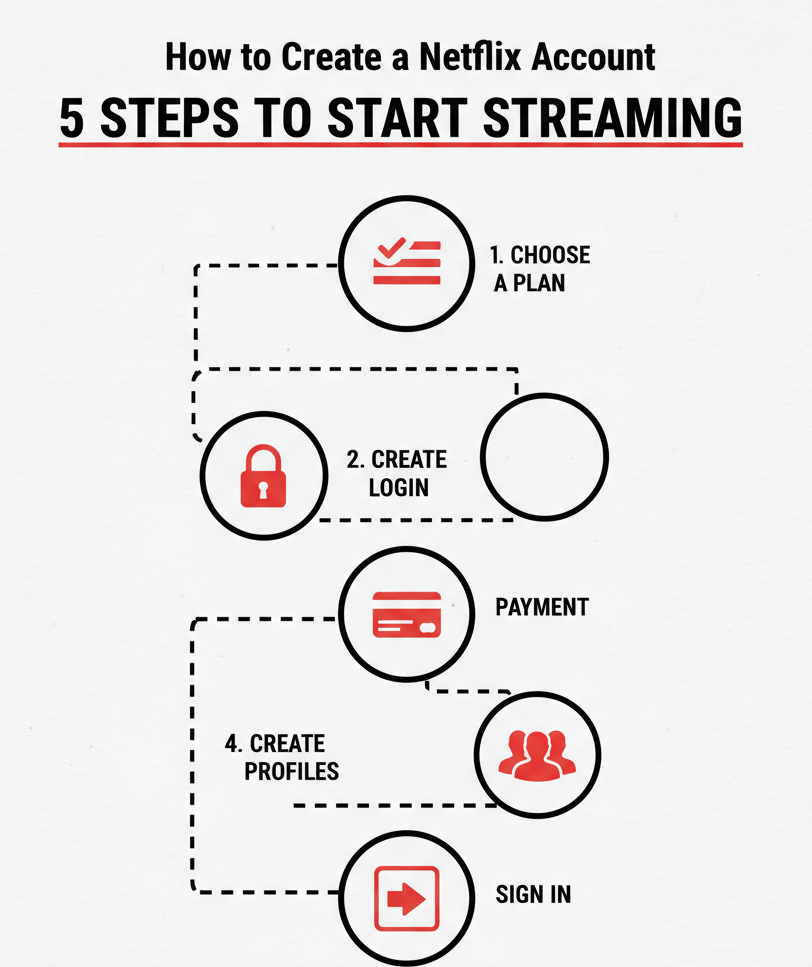
Follow these steps:
- Open the Netflix app or visit the Netflix website in a browser.
- Select Get Started or Sign Up on the registration screen.
- Choose a subscription plan based on video quality and number of screens.
- Enter a valid email address and create a secure password.
- Add a payment method such as a debit card, credit card, digital wallet, or gift balance.
After activation, the account can contain up to five profiles, allowing different household members to maintain separate watch histories and recommendations.
How to Log In to Netflix on Any Device?
Signing in connects your account to a device so you can access profiles, watch history, and saved content.
Mobile Phones or Tablets
- Open the Netflix app.
- Tap Sign In.
- Enter your email or phone number and password.
Computers
- Open the Netflix website in a browser.
- Click Sign In.
- Enter your login credentials.
Smart TVs or Streaming Devices
- Open the Netflix app on the device.
- A TV activation code may appear.
- Enter the code on the Netflix website using another device to link the screen.
Once the sign-in process finishes, the device can stream content using your selected profile.
Netflix Account & Profile Management
Managing your Netflix account settings and profiles ensures that your streaming preferences, security, and access settings match your needs.
How to Add, Edit, or Delete Netflix Profiles
Profiles allow multiple viewers to use one account while keeping separate watch history, recommendations, and preferences.
Add a Profile
- Open Netflix and select Manage Profiles.
- Choose Add Profile.
- Enter a profile name and select Standard or Kids preferences.
- Save the profile.
Edit a Profile
- Open Manage Profiles.
- Select the profile you want to update.
- Modify netflix account info settings such as:
- display name
- language
- maturity rating
- autoplay controls
Delete a Profile
- Open Manage Profiles.
- Select the profile to remove.
- Click Delete Profile and confirm.
Deleting a profile removes its viewing history, preferences, and recommendations.
How to Set a Profile PIN Lock
A profile PIN prevents other users from opening a specific profile without authorization.
Steps to enable a PIN on Netflix
- Open Account Settings from the Netflix menu.
- Go to Profile & Parental Controls.
- Select the profile you want to protect.
- Enable Profile Lock.
- Enter your account password.
- Create a numeric PIN and save.
Once activated, the PIN must be entered before that profile opens on any device.
How to Change Netflix Email or Password
The Netflix account email address and password control login access and security.
To update these credentials:
- Change Email Address
- Open netflix app Settings.
- Select Change Email.
- Enter a new email and confirm with your current password.
- Change Password
- Open Account Settings.
- Select Change Password.
- Enter the current password and then a new secure password.
- Save changes.
After changing the password, Netflix may prompt you to sign in again on all devices to confirm the update.
How to Manage Multiple Users on One Account
A Netflix account management can support multiple viewers through separate profiles and controlled access.
Best practices for multiple users:
- Create individual profiles for each household member.
- Set kids profiles with maturity restrictions where needed.
- Apply profile PINs to restrict access to adult profiles.
- Use watch history and recommendations per profile to personalize viewing.
- Sign out shared devices not in regular use to maintain account privacy.
These steps help you get around the Netflix Household restriction and continue using Netflix together while keeping each viewer’s preferences and settings intact.
How to Permanently Delete a Netflix Account
Permanently deleting a Netflix account completely removes access, personal settings, and subscription data after a waiting period.
To permanently close the account:
- Sign in to Netflix with your email and password.
- Navigate to Account Settings.
- Select Cancel Membership.
- Complete the cancellation process.
- Netflix retains the account for a short retention period in case you return. If not reactivated, Netflix deletes all account data after that period.
Permanently deleting the Netflix account stops all future billing and removes associated profiles and settings.
Netflix USA Plans & Pricing (Monthly)
| Plan | Video Quality | Streams | Downloads | Ads |
|---|---|---|---|---|
| Standard with Ads | Up to 1080p (Full HD) | 2 devices | Not available | Yes |
| Standard | Up to 1080p (Full HD) | 2 devices | Up to 2 devices | No |
| Premium | Up to 4K UHD + HDR | 4 devices | Up to 6 devices | No |
Using Netflix on Different Devices
Netflix allows streaming on a wide range of internet-connected devices, including smart TVs, mobile phones, tablets, computers, and gaming consoles.
Each device requires installation or access through an official Netflix app or browser. Users can update apps, manage linked devices, and switch playback between screens according to their subscription plan. This section explains how to use Netflix efficiently on all supported devices.
How to Install Netflix on a Smart TV
Smart TVs often come with Netflix pre-installed. If the app is missing:
- Turn on the TV and connect it to the internet.
- Open the TV’s App Store or applications menu.
- Search for Netflix and select the official app.
- Choose Install or Download to add it.
- Launch Netflix and sign in with your account.
How to Use Netflix on Android and iPhone
Mobile devices let users stream Netflix on the go:
- On Android, open Google Play Store, search for Netflix, and install the app.
- On iPhone or iPad, open the App Store, locate Netflix, and install it.
How to Watch Netflix on PC or Mac
Computers can access Netflix via web browsers or apps:
- Open a supported browser such as Chrome, Edge, or Safari, then go to Netflix.
- Sign in with your email or phone number and password.
- On Windows PCs, the Netflix app from Microsoft Store can be used as an alternative.
How to Stream Netflix on PlayStation and Xbox
Gaming consoles support Netflix streaming through their dedicated apps:
- Connect the console to the internet and power it on.
- Open the console’s app store or library.
- Search for Netflix, download, and install the app.
- Launch the app and sign in with your Netflix account.
Supported models include PS4, PS5, Xbox One, and Xbox Series X/S.
Netflix is not available for direct streaming on the Nintendo Switch. Users cannot install or stream Netflix directly on the console. Attempting third-party workarounds is not supported and may pose technical risks.
Finding and Managing Netflix Content
Netflix delivers a vast library of on‑demand movies, TV series, and original programs that users can discover and manage through intuitive navigation, personalized suggestions, and content controls.
Effective use of Netflix content features, such as search tools, recommendation systems, lists, watch history, and viewing preferences, lets users locate desired titles quickly and customized their streaming experience.
How to Find Movies and Shows on Netflix
Netflix content discovery begins with browsing and searching through the platform’s interface.
To find movies and TV shows:
- Open Netflix and scroll through featured rows like Continue Watching, Popular on Netflix, New Releases, and Top Picks.
- Use the Search tool at the top of the screen to locate specific titles.
- Explore categories such as Action, Comedy, Documentaries, and Anime by selecting genre filters.
These methods help users locate content efficiently based on popularity, recency, and category.
How to Use My List and Continue Watching
Netflix My List and Continue Watching features help users manage content they want to watch or resume.
- Add to My List
- While browsing, select the title you want.
- Choose + My List to save it for later.
- Access My List from the main menu to see saved titles.
- Continue Watching
- Netflix automatically tracks partially watched titles.
- The Continue Watching row displays these titles for quick access.
These tools let users organise their planned and in‑progress viewing without repeated searching.
How to View and Hide Netflix Watch History
Netflix watch history shows titles a user has streamed under a profile.
To view or hide watch history:
- Open the profile and go to Account Settings.
- Select Viewing Activity to see the list of watched movies and shows.
- To hide a title, choose the hide option next to it; hidden titles no longer affect recommendations.
Managing watch history allows users to control what appears in their recommendation suggestions.
How to Find Netflix Originals and Trending Titles
Netflix Originals and Trending content highlight exclusive and popular titles.
- Netflix Originals
- Appear under dedicated rows labelled Netflix Originals.
- These include series and films produced or distributed by Netflix exclusively.
- Trending Titles
- Appear in rows like Top 10 in the U.S. Today or region‑specific trending lists.
- Titles in trending rows reflect high streaming activity across Netflix users.
These curated sections help users find exclusive and widely watched content quickly.
How to Change Netflix Viewing Preferences
Netflix viewing preferences influence how content appears and is recommended.
To change preferences:
- Open the profile menu and go to Account Settings.
- Select Profile & Parental Controls.
- Adjust Language, Playback Settings, Subtitle Appearance, and Maturity Controls as desired.
Changing viewing preferences ensures that Netflix content displays in a way that matches user needs and comfort levels.
How to Check a Netflix Download Expiration Date?
Netflix downloads show the remaining time inside the app.
To check:
- Open the Netflix app
- Tap Downloads
- Select the downloaded title
- View the expiration message under the episode or movie
Netflix displays warnings like: “Expires in 2 days” or “Expires in 5 hours”
Netflix Errors & Troubleshooting
Errors and interruptions can occur when using Netflix due to network issues, device conflicts, login problems, or internal app errors. This section provides precise explanations and step‑by‑step solutions for common error situations that Netflix users encounter.
What Netflix Error Code M7361 Means
Netflix error code M7361 indicates a playback issue where the Netflix app cannot communicate properly with the device’s browser or app platform. This error often appears on smart TVs and streaming devices.
Error M7361 can result from:
- Corrupt app cache or outdated app data.
- Conflicting browser extensions or outdated web browsers on computers.
- Network disruptions.
What Netflix Error Code E109 Means
Netflix error code E109 occurs when the streaming service cannot load content due to a device authentication or network connectivity issue.
Error E109 can result from:
- Network instability or weak Wi‑Fi signal.
- Device authorization area mismatches with the Netflix account location.
- Outdated system software or app version.
How to Check if Netflix Is Down
When streaming interruptions occur across multiple devices, the issue may be a Netflix service outage.
To check if Netflix is down:
- Try streaming on different devices.
- Test the network connection with other online services.
- Search for current outage reports on trusted online status platforms.
If all devices fail to load Netflix while other internet services work, the issue is likely a Netflix outage that requires waiting for service restoration.
People Also Ask
Go to Account Settings → Profile & Parental Controls → Language, then select your preferred audio and subtitle language.
Yes, on mobile devices or supported PCs, open the title and tap the Download icon to save it for offline playback.
No, each profile requires login credentials; however, separate profiles allow multiple users under one account safely.
Use Profile & Parental Controls → Maturity Settings to restrict content based on age ratings.
Final Thoughts On Mastering Netflix User Guide
Using Netflix has become second nature for me, but understanding how the platform is managed and organized really changes the game.
From setting up my account and profiles to managing downloads, personalizing recommendations, and troubleshooting errors, I can now enjoy my favorite shows without stress.
Netflix usage knowlege helps me to use on any device and keeping my account secure means I spend more time watching and less time figuring things out.