



Close Menu
StuffaBlog – Entertainment, Celebrity & Lifestyle News
  • Trending News
    • Tech News
    • Environment
  • Business
    • Startup
    • Marketing
    • Cryptocurrency
    • eCommerce
    • Finance
    • Real Estate
      • Commercial Real Estate
      • Home Improvement
        • Home Decor
    • Inventory Management
    • Management & Leadership
  • Tech
    • Gadgets
      • Laptops
      • Smartphones
      • Computers
    • AI & ML
    • IoT
    • Software
    • Apps
      • App Development
    • Automobiles
  • Digital Marketing
    • Social Media
      • Youtube
      • Instagram
      • Facebook
      • TikTok
      • Snapchat
    • SEO
    • Blogging
      • Web Design
      • Web Development
    • Email Marketing
    • Content Marketing
  • Entertainment
    • Gaming
      • Games
      • Mobile Games
    • Movies and TV Shows
    • Celebrities Gossip
    • Sports
    • Fashion
  • Health
    • Fitness
    • Lifestyle
    • Health and Safety
    • Insurance
    • Mental Health
      • Wellness and Self-Care
  • Travel
    • Europe
    • Asia
    • Travel Tips and Hacks
      • Family Travel
      • Solo Travel
      • Budget Travel
      • Adventure Travel
    • Travel Destinations
    • Travel Itineraries
  • How-to Guides
  • More
    • Net Worth
    • Top 10
    • Reviews
      • Alternatives
      • Tools
    • Sponsored Content
  • Real Estate Investments
  • Parties
  • Books and Literature
  • Google
  • Healthy Recipes
  • Food

Subscribe to Updates

Get the latest creative news from FooBar about art, design and business.

What's Hot
Truth Behind Hayden Panettiere and Daughter Kaya Abandonment

Hayden Panettiere Reclaims Her Narrative Over “Heartbreaking” Daughter Rumors

May 12, 2026
Chelsea Handler Shane Gillis Feud at Kevin Hart Roast

Chelsea Handler and Tom Brady Ignite Viral Chaos at Netflix’s Kevin Hart Roast

May 11, 2026
Digital networking card diagram showing lead generation connections on a professional news graphic

How a Professional Enterprise Networking Card Helps Businesses Generate More Leads 

May 11, 2026
Facebook X (Twitter) Instagram
Trending
  • Hayden Panettiere Reclaims Her Narrative Over “Heartbreaking” Daughter Rumors
  • Chelsea Handler and Tom Brady Ignite Viral Chaos at Netflix’s Kevin Hart Roast
  • How a Professional Enterprise Networking Card Helps Businesses Generate More Leads 
  • Ciara Miller Ignites Bravo Feud After Accusing West Wilson of Sleeping with Jennifer Fessler
  • Taylor Swift’s Legal Team Slams ‘The Life of a Showgirl’ Trademark Lawsuit as ‘Absurd’
  • Billie Eilish and Nat Wolff Make Red Carpet Debut at “Hit Me Hard and Soft” Premiere
  • Why Helena Bonham Carter Left The White Lotus: The “Boisterous” Creative Clash Explained
  • Blake Lively Settles Bitter “It Ends With Us” Lawsuit Before Triumphant Met Gala Return
StuffaBlog – Entertainment, Celebrity & Lifestyle News
  • Home
  • About us
  • Contact us
Facebook X (Twitter) Instagram Pinterest YouTube LinkedIn
  • Home
  • Entertainment
  • Celebrities
    • Actors
    • Musicians
    • Influencers
  • Net Worth
    • Music Wealth
    • Film Wealth
    • Athletes Wealth
    • Digital Wealth
  • Lifestyle
    • Travel
  • Trending News
    • Celebrity News
    • Industry News
    • Awards
StuffaBlog – Entertainment, Celebrity & Lifestyle News
Home»Articles»How-to Guides»How to Lock Apps on Android – Step-by-Step Guide to Secure Your Privacy
How-to Guides

How to Lock Apps on Android – Step-by-Step Guide to Secure Your Privacy

Wajahat TajamalBy Wajahat TajamalAugust 27, 2025No Comments5 Mins Read
Facebook Twitter Pinterest LinkedIn Tumblr Email
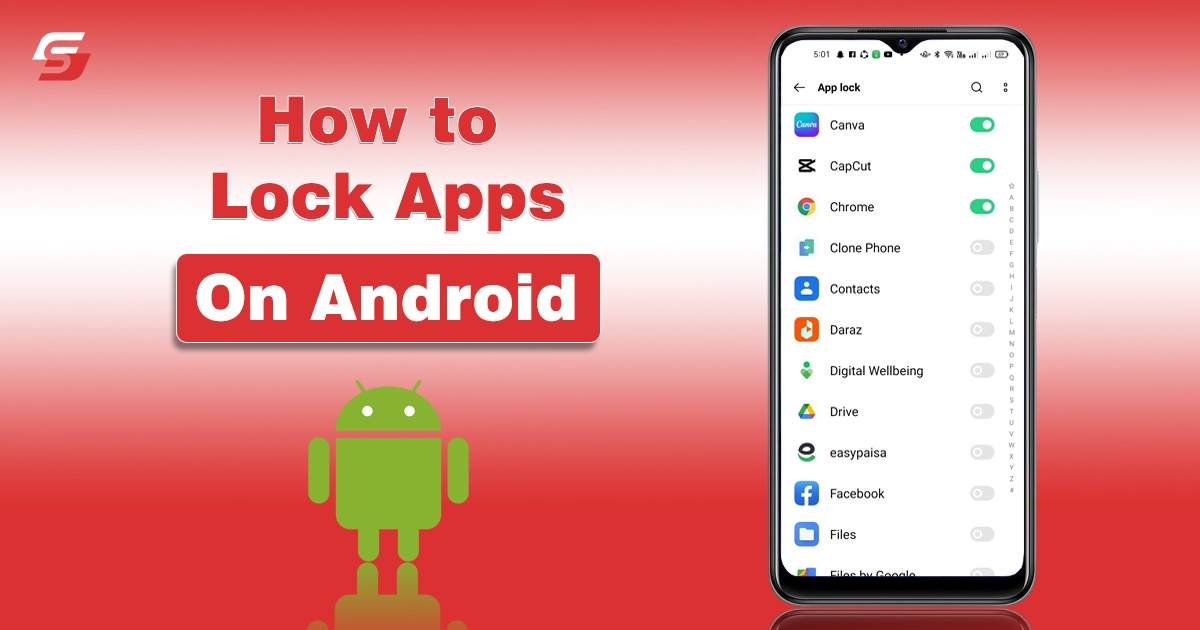
How to Lock Apps on Android
How to Lock Apps on Android - Step-by-Step Guide to Secure Your Privacy
Share
Facebook Twitter LinkedIn Pinterest Email Copy Link
Table of Content
  1. Why You Should Lock Apps on Android?
  2. How to Lock Apps on Android?
  3. Other Different Ways to Lock Apps on Android
    1. 1. Built-in App Lock Features on Android Devices
    2. 2. Screen Pinning on Android
    3. 3. Third-Party Applications
  4. How to Unlock or Remove App Locks on Android?
  5. My Personal Recommendation
  6. Final Thoughts

Have you ever handed your phone to someone only to feel uneasy about them opening your personal apps? I know that feeling, and it is exactly why learning how to lock apps on Android is so important.

Whether it is your apps for businesses, emoji apps, social media apps, or private photos, we all want to keep certain things away from prying eyes. In this detailed guide, I will take you through different ways to lock apps on Android, explain why it matters, and help you choose the right method for your needs.

Why You Should Lock Apps on Android?

Many people believe setting up a phone lock screen is enough, but in reality, that only stops strangers from accessing your device entirely. Once your phone is unlocked, anyone who holds it can open any app. That is where app locking comes in. It helps in:

  • Protecting Personal Information: We store banking apps, digital wallets, emails, and even sensitive photos on our phones. App locking ensures no one else can access them even if they borrow your phone.
  • Preventing Unauthorized Purchases: If kids or others use your phone, app locking prevents them from making accidental or unauthorized purchases on platforms like Google Play Store.
  • Adding an Extra Layer of Security: Passwords and fingerprint locks for apps add another shield of protection beyond your main phone lock. Even if someone manages to unlock your phone, they cannot open sensitive apps without your permission.

How to Lock Apps on Android?

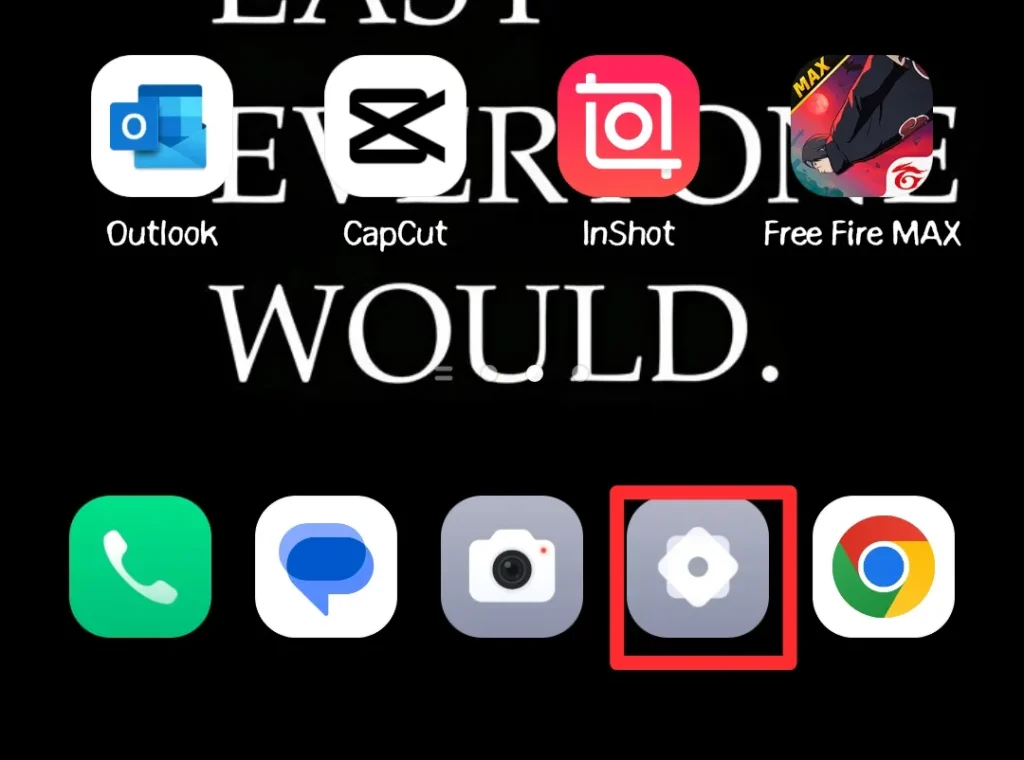
  • Go to Settings.
Go to Settings
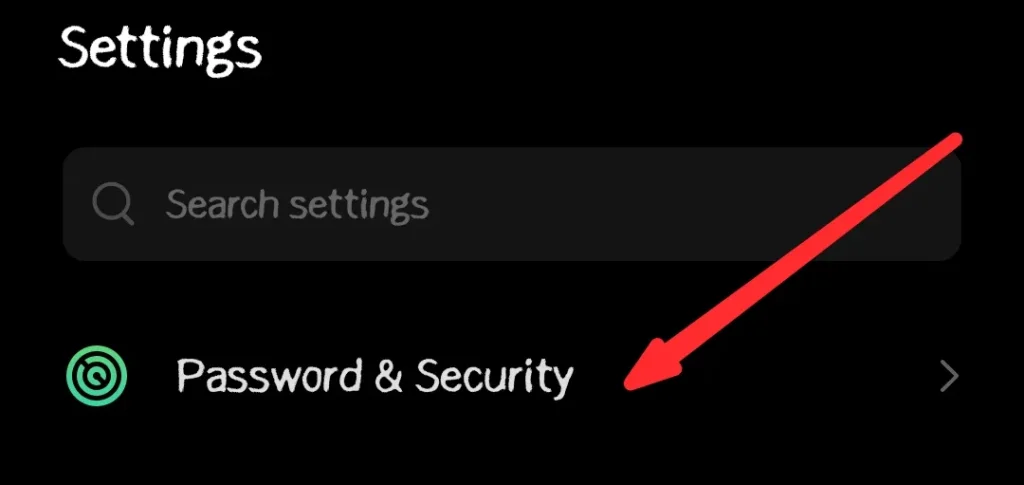
  • Find the Password & Security section.
Find the Password & Security section
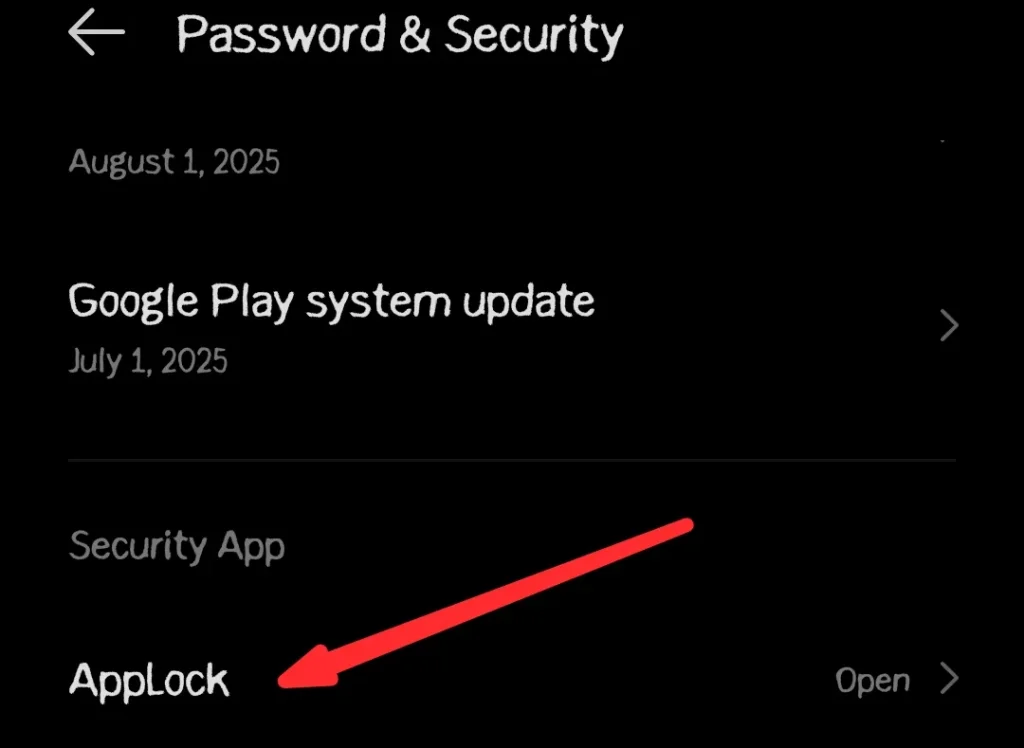
  • Now, select the App Lock option.
Now, select the App Lock option
  • Enter your authentication password.
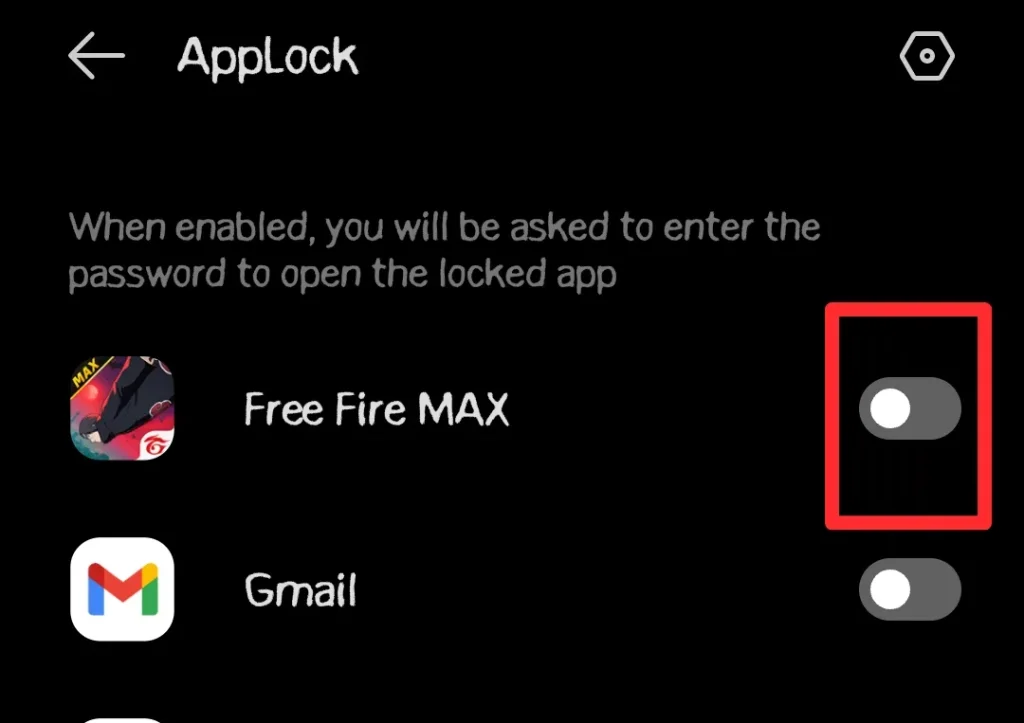
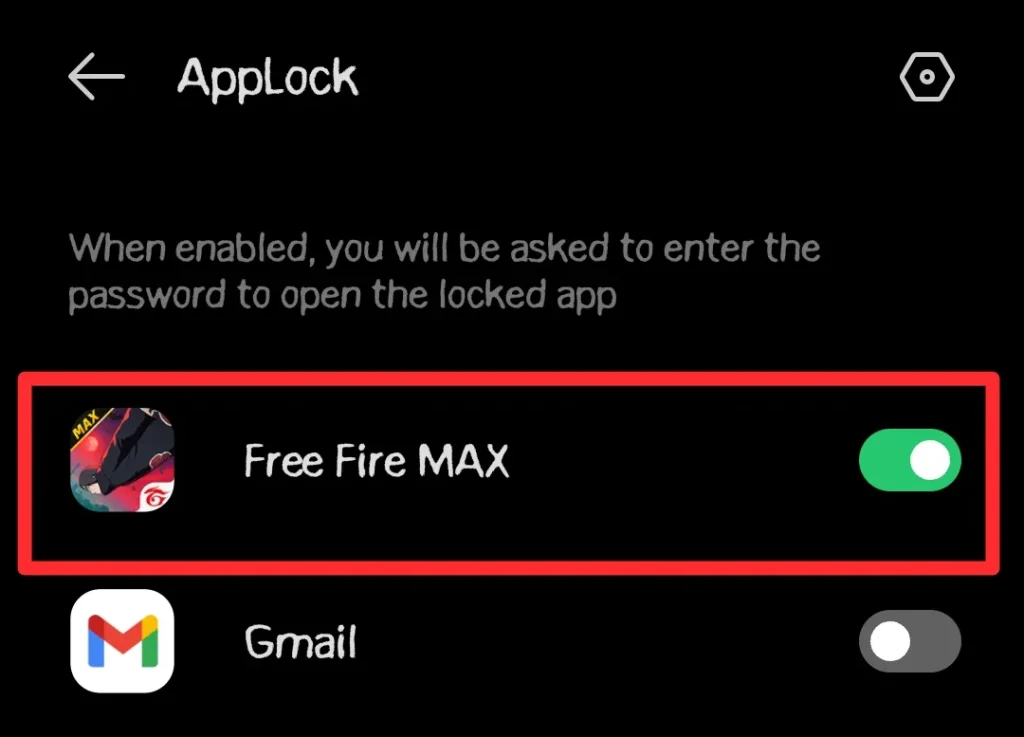
  • Select the apps you want to lock.
Select the apps you want to lock
  • Toggle on the Lock button.
Toggle on the Lock button

The steps may vary slightly based on your Android smartphone and version. However, the core steps to follow are the same.

Other Different Ways to Lock Apps on Android

No doubt, the built-in app lock feature is the best one when it comes to locking apps on Android. But there are several approaches to locking apps that are also present, and each has its own advantages. I have listed them below:

1. Built-in App Lock Features on Android Devices

Many Android brands provide built-in app lock options that make it easy to secure apps without installing anything extra. This is the most convenient way if your phone supports it.

  • Samsung’s Secure Folder: Samsung users can use the Secure Folder to move apps inside a protected space. It requires authentication before you can access those apps.
  • Xiaomi’s App Lock: Xiaomi phones come with an App Lock feature in settings. You can choose which apps to protect and lock them with a PIN, password, or fingerprint.
  • OnePlus’ App Locker: OnePlus devices offer App Locker, which allows you to add apps to a secure list that requires authentication each time.

2. Screen Pinning on Android

Screen pinning is a feature that allows you to lock your phone to a single app. It is not exactly an app lock, but it is useful if you want to hand your phone temporarily to someone without them switching to other apps.

You can enable screen pinning in your phone’s settings under security options. Once activated, you can pin an app and keep it locked until you unpin it using a password or fingerprint.

3. Third-Party Applications

If your phone does not offer a built-in app lock, you can use reliable third-party applications. These apps provide customizable options, better control, and sometimes additional features.

  • AppLock: One of the most popular third-party apps, AppLock allows you to lock apps, photos, and settings with a password or fingerprint.
  • Norton App Lock: Created by Norton, this app is lightweight and ad-free. It provides PIN or pattern protection for your applications.
  • Smart AppLock: This app is perfect if you want more customization, including time-based locking, intruder selfies, and hiding notifications.

How to Unlock or Remove App Locks on Android?

There may come a time when you no longer want to keep an app locked. Like, I once locked social media platforms, but soon, I had to unlock them why I was fed up with entering passwords again and again. Unlocking is simple but varies depending on the method.

  • Disabling Built-in App Locks: Go to your phone settings, open the app lock feature, and turn it off for the apps you no longer want locked.
  • Removing Third-Party App Locks: Open the third-party app, enter your password or fingerprint, and then choose the option to disable or uninstall it.

My Personal Recommendation

After experimenting with both built-in and third-party solutions, I personally recommend using your device’s built-in app lock if available. It is simple, safe, and does not drain extra battery life.

If your phone does not have it, Norton App Lock is a good third-party option because it is lightweight and trustworthy.

Final Thoughts

These are the details on how to lock apps on Android.

Locking apps on Android is not just about keeping nosy friends out of your messages. It is about protecting your financial details, personal photos, and private conversations. Whether you choose built-in features, third-party apps, or biometric locks, adding this extra layer of security gives peace of mind.

Now that you know exactly how to lock apps on Android, you can confidently secure your phone and keep your data safe. Take action today, because your privacy deserves protection.

Share. Facebook Twitter Pinterest LinkedIn Tumblr Email
Previous ArticleHow to Leave a Group Chat on Android – Complete Guide (2025)
Next Article How to Turn Off Safe Mode on Android – Complete Guide
Wajahat Tajamal

Rana Wajahat Tajamal is a passionate sports and games writer who provides in-depth analysis, insights, and updates on various online and field sports. With a keen eye for detail and a love for the game, he delivers engaging content for sports enthusiasts.

Related Posts

How to Login to MySDMC SSO?
Educational Resources

How to Login to MySDMC SSO Portal (Complete Guide 2026)

By Fawad MalikApril 16, 2026
A person editing a video on a laptop at a desk, with social media icons floating around, a camera on a tripod, ring light, mug, notebook, pen, and plant, against a red gradient background.
How-to Guides

Beginner’s Guide to Video Editing for Social Media

By Toby NwazorApril 7, 2026
How to watch Netflix on Apple CarPlay screen using a car infotainment system
Entertainment

How to Play Netflix on Apple CarPlay Using AI Boxes or Mirroring

By Muhammad NomanMarch 24, 2026
Child using tablet with streaming app safety icons and parental controls
How-to Guides

How to Choose a Streaming App for Kids: Parental Controls & Content Filters

By Hammad AliMarch 1, 2026
Roku remote connecting to TV during setup and pairing process
How-to Guides

How to Connect Roku Remote to TV: Setup & Troubleshooting Guide

By Muhammad NomanFebruary 28, 2026
Showing mobile screen and Laptopscreen the options of disney log out safely.
Entertainment

How to LogOut of Disney Plus on TV Safely Without Losing Your Data

By Muhammad NomanFebruary 27, 2026
Add A Comment

Comments are closed.

Don't Miss
Truth Behind Hayden Panettiere and Daughter Kaya Abandonment

Hayden Panettiere Reclaims Her Narrative Over “Heartbreaking” Daughter Rumors

By Fawad MalikMay 12, 2026

In the Spotlight: The global entertainment cycle often moves faster than the truth, and for…

Chelsea Handler Shane Gillis Feud at Kevin Hart Roast

Chelsea Handler and Tom Brady Ignite Viral Chaos at Netflix’s Kevin Hart Roast

May 11, 2026
Digital networking card diagram showing lead generation connections on a professional news graphic

How a Professional Enterprise Networking Card Helps Businesses Generate More Leads 

May 11, 2026
West Wilson Reacts to Ciara Miller's Shocking Allegations

Ciara Miller Ignites Bravo Feud After Accusing West Wilson of Sleeping with Jennifer Fessler

May 9, 2026
Top Posts
How to Become Famous

How to Become Famous? Top 10 Ideas to Start

January 31, 2025
What is a salary package breakdown including basic salary, allowances, bonuses and benefits

What is a Salary Package? Structure, Calculation and Example

March 26, 2026
Top 12 Most Popular TV Shows of All Time

Top 12 Most Popular TV Shows of All Time

February 1, 2026
Net Worth

Net Worth Overview and How to Calculate It

February 4, 2026
Stay In Touch
  • Facebook
  • Twitter
  • Pinterest
  • Instagram
  • YouTube
  • Vimeo

Subscribe to Updates

Get the latest creative news from SmartMag about art & design.

About Us
About Us

At StuffaBlog, we cover celebrity news, entertainment updates, and net worth stories across film, music, sports and digital media. From actors and musicians to influencers, awards, movies, streaming, and lifestyle, it’s all here in one place.

Facebook X (Twitter) Pinterest YouTube WhatsApp
Our Picks
Truth Behind Hayden Panettiere and Daughter Kaya Abandonment

Hayden Panettiere Reclaims Her Narrative Over “Heartbreaking” Daughter Rumors

May 12, 2026
Chelsea Handler Shane Gillis Feud at Kevin Hart Roast

Chelsea Handler and Tom Brady Ignite Viral Chaos at Netflix’s Kevin Hart Roast

May 11, 2026
Digital networking card diagram showing lead generation connections on a professional news graphic

How a Professional Enterprise Networking Card Helps Businesses Generate More Leads 

May 11, 2026
Most Popular
Stream4u

Stream4u Review 2026: Features, Safety, Legality & Alternatives Explained

April 20, 2026
Illustrated characters networked together on a red background for an article explaining the definition of genre.

What Is Genre? Definition, Types, and Examples

April 11, 2026
How to watch Netflix on Apple CarPlay screen using a car infotainment system

How to Play Netflix on Apple CarPlay Using AI Boxes or Mirroring

March 24, 2026
  • Home
© 2006 - 2026 Stuffablog.com - All rights reserved.

Type above and press Enter to search. Press Esc to cancel.