



Close Menu
StuffaBlog – Entertainment, Celebrity & Lifestyle News
  • Trending News
    • Tech News
    • Environment
  • Business
    • Startup
    • Marketing
    • Cryptocurrency
    • eCommerce
    • Finance
    • Real Estate
      • Commercial Real Estate
      • Home Improvement
        • Home Decor
    • Inventory Management
    • Management & Leadership
  • Tech
    • Gadgets
      • Laptops
      • Smartphones
      • Computers
    • AI & ML
    • IoT
    • Software
    • Apps
      • App Development
    • Automobiles
  • Digital Marketing
    • Social Media
      • Youtube
      • Instagram
      • Facebook
      • TikTok
      • Snapchat
    • SEO
    • Blogging
      • Web Design
      • Web Development
    • Email Marketing
    • Content Marketing
  • Entertainment
    • Gaming
      • Games
      • Mobile Games
    • Movies and TV Shows
    • Celebrities Gossip
    • Sports
    • Fashion
  • Health
    • Fitness
    • Lifestyle
    • Health and Safety
    • Insurance
    • Mental Health
      • Wellness and Self-Care
  • Travel
    • Europe
    • Asia
    • Travel Tips and Hacks
      • Family Travel
      • Solo Travel
      • Budget Travel
      • Adventure Travel
    • Travel Destinations
    • Travel Itineraries
  • How-to Guides
  • More
    • Net Worth
    • Top 10
    • Reviews
      • Alternatives
      • Tools
    • Sponsored Content
  • Real Estate Investments
  • Parties
  • Books and Literature
  • Google
  • Healthy Recipes
  • Food

Subscribe to Updates

Get the latest creative news from FooBar about art, design and business.

What's Hot
Truth Behind Hayden Panettiere and Daughter Kaya Abandonment

Hayden Panettiere Reclaims Her Narrative Over “Heartbreaking” Daughter Rumors

May 12, 2026
Chelsea Handler Shane Gillis Feud at Kevin Hart Roast

Chelsea Handler and Tom Brady Ignite Viral Chaos at Netflix’s Kevin Hart Roast

May 11, 2026
Digital networking card diagram showing lead generation connections on a professional news graphic

How a Professional Enterprise Networking Card Helps Businesses Generate More Leads 

May 11, 2026
Facebook X (Twitter) Instagram
Trending
  • Hayden Panettiere Reclaims Her Narrative Over “Heartbreaking” Daughter Rumors
  • Chelsea Handler and Tom Brady Ignite Viral Chaos at Netflix’s Kevin Hart Roast
  • How a Professional Enterprise Networking Card Helps Businesses Generate More Leads 
  • Ciara Miller Ignites Bravo Feud After Accusing West Wilson of Sleeping with Jennifer Fessler
  • Taylor Swift’s Legal Team Slams ‘The Life of a Showgirl’ Trademark Lawsuit as ‘Absurd’
  • Billie Eilish and Nat Wolff Make Red Carpet Debut at “Hit Me Hard and Soft” Premiere
  • Why Helena Bonham Carter Left The White Lotus: The “Boisterous” Creative Clash Explained
  • Blake Lively Settles Bitter “It Ends With Us” Lawsuit Before Triumphant Met Gala Return
StuffaBlog – Entertainment, Celebrity & Lifestyle News
  • Home
  • About us
  • Contact us
Facebook X (Twitter) Instagram Pinterest YouTube LinkedIn
  • Home
  • Entertainment
  • Celebrities
    • Actors
    • Musicians
    • Influencers
  • Net Worth
    • Music Wealth
    • Film Wealth
    • Athletes Wealth
    • Digital Wealth
  • Lifestyle
    • Travel
  • Trending News
    • Celebrity News
    • Industry News
    • Awards
StuffaBlog – Entertainment, Celebrity & Lifestyle News
Home»Articles»Android»How to Turn Off Safe Mode on Android – Complete Guide
Android

How to Turn Off Safe Mode on Android – Complete Guide

Wajahat TajamalBy Wajahat TajamalAugust 28, 2025No Comments7 Mins Read
Facebook Twitter Pinterest LinkedIn Tumblr Email
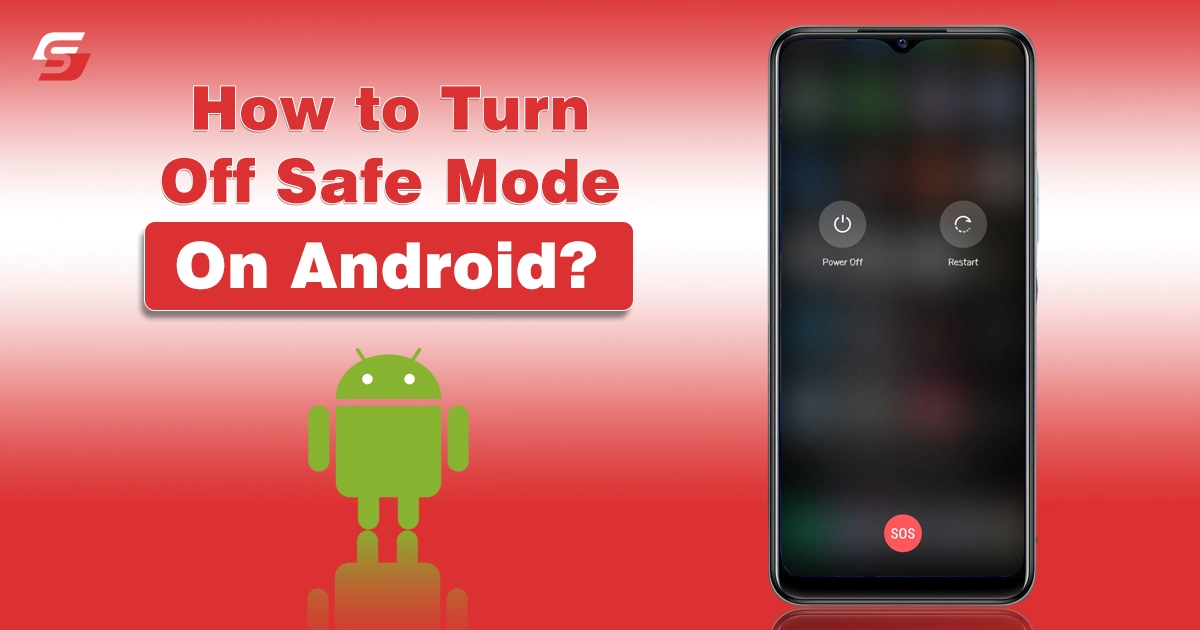
How to Turn Off Safe Mode on Android?
How to Turn Off Safe Mode on Android - Complete Guide
Share
Facebook Twitter LinkedIn Pinterest Email Copy Link
Table of Content
  1. What is Safe Mode on Android?
  2. Why Does Android Enter Safe Mode?
  3. How to Turn Off Safe Mode on Android?
    1. 1. Restart Your Device
    2. 2. Use the Notification Panel
    3. 3. Power Off Completely
    4. 4. Check Volume Buttons
    5. 5. Remove the Battery (For Older Phones)
    6. 6. Uninstall Problematic Apps
    7. 7. Factory Reset as Last Resort
  4. How to Prevent Android from Entering Safe Mode Accidentally?
  5. Final Thoughts

If you have ever restarted your Android phone and noticed that it booted into Safe Mode, you may have felt confused. In Safe Mode, all third-party apps are disabled, which makes your phone feel limited and unusual. So, you should know how to turn off safe mode on Android to bring back the normal functionality.

While this mode is useful for troubleshooting issues, it can be frustrating if it gets stuck or turns on accidentally. In this guide, I will take you through everything you need to know about turning off Safe Mode on Android.

I will also share different solutions, troubleshooting tips, and reasons why your device might be stuck in Safe Mode.

What is Safe Mode on Android?

Safe Mode is a built-in troubleshooting feature on Android devices. When enabled, your phone only runs essential system apps and services while disabling third-party apps.

This mode helps you check whether an issue is caused by a downloaded app or by the system itself. For example, if your phone is crashing frequently, you can restart in Safe Mode to see if the issue persists. If the problem disappears, then one of your installed apps is responsible. But if it remains, the issue is likely with the system or hardware.

I can easily recall a moment when I tried to download the social media platforms apps from third-party sources, and eventually, my mobile crashed. When entered into safe mode, I found out those apps to be the primary culprit.

Why Does Android Enter Safe Mode?

Understanding why your device enters Safe Mode is important because it helps you prevent it from happening accidentally. There are several common reasons for this behavior.

  • Accidental Button Combination: Sometimes, Safe Mode activates when you accidentally press certain buttons while restarting your phone. For instance, holding the power button and volume down button together can trigger it.
  • System or App Errors: When your phone detects a serious app crash or system malfunction, it might boot into Safe Mode to protect itself and prevent further damage.
  • Software Updates: After a major software update, some devices automatically enter Safe Mode to ensure that apps are compatible before returning to normal use.
  • Malware or Suspicious Apps: If malicious apps, especially third-party gaming and streaming platforms and apps, try to disrupt your system, Safe Mode can be triggered as a security measure to block the harmful activity.

How to Turn Off Safe Mode on Android?

Now that you know what Safe Mode is and why your phone might be in it, it’s time to understand how to turn off safe mode on Android. In the under section, I have detailed different methods that can help you perform this action.

1. Restart Your Device

The simplest and most common way to turn off Safe Mode is to restart the Android phone.

  • Hold down the power button until the power menu appears.
  • Select the option to restart your device.
Select the option to restart your device
  • Wait for your phone to power back on normally.

If this works, your device should boot back into regular mode with all apps enabled.

2. Use the Notification Panel

On some Android devices, a Safe Mode notification appears in the status bar. You can disable it directly.

  • Pull down the notification panel from the top of the screen.
  • Tap the notification that says “Safe Mode is on”.
  • Confirm by selecting the option to restart your phone.

This feature is not available on all devices, but it is worth checking if your phone supports it.

3. Power Off Completely

If a normal restart does not work, you may need to power off your phone completely and then turn it back on.

  • Hold the power button and select Power Off.
  • Wait for at least 30 seconds after the screen goes black.
  • Press the power button again to turn the device back on.

This full shutdown often clears temporary glitches that keep your phone stuck in Safe Mode.

4. Check Volume Buttons

One of the most overlooked reasons why a phone stays in Safe Mode is faulty volume buttons. If they are stuck or damaged, the device might think you are still holding them down during boot.

  • Inspect both the volume up and down buttons carefully.
  • Make sure there is no dirt or dust causing them to stick.

If necessary, clean around the buttons or remove your phone case to see if it is pressing on them.

5. Remove the Battery (For Older Phones)

If you have an older Android phone with a removable battery, taking it out can help.

  • Power off the device.
  • Open the back cover and carefully remove the battery.
  • Wait for at least 60 seconds before reinserting it.
  • Turn the phone back on.

This process clears any temporary power glitches that may keep Safe Mode enabled.

6. Uninstall Problematic Apps

If your device keeps booting into Safe Mode repeatedly, it might be caused by a faulty app. No matter if you hide or lock apps on Android, the problem persists. The only way to get rid of the safe mode is by uninstalling those faulty apps.

  • Restart the phone in Safe Mode.
  • Go to Settings > Apps.
  • Find the recently installed or suspicious app.
  • Tap Uninstall and confirm.
  • Restart the device normally.

If the issue was app-related, your phone should now boot without Safe Mode.

7. Factory Reset as Last Resort

If nothing else works, a factory reset may be required. It will erase all data and restore your device to its original state.

  • Back up your important files.
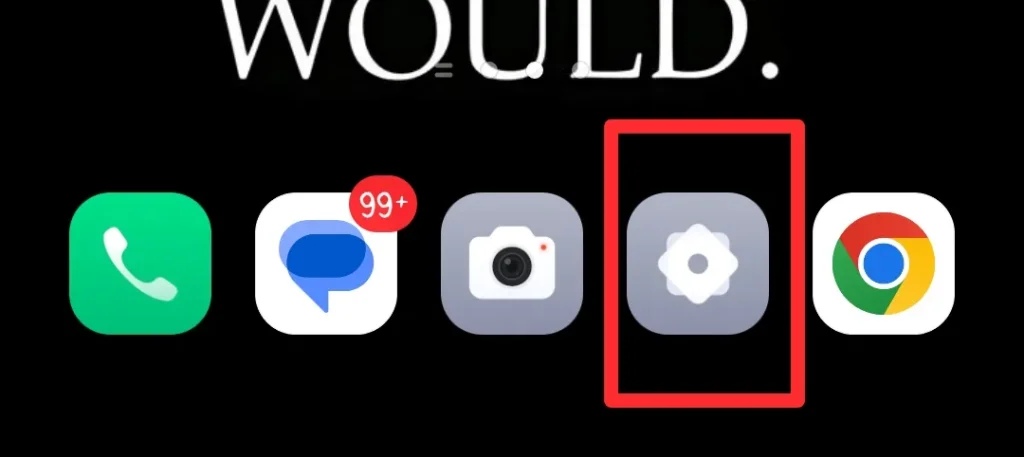
  • Open Settings.
Open Settings
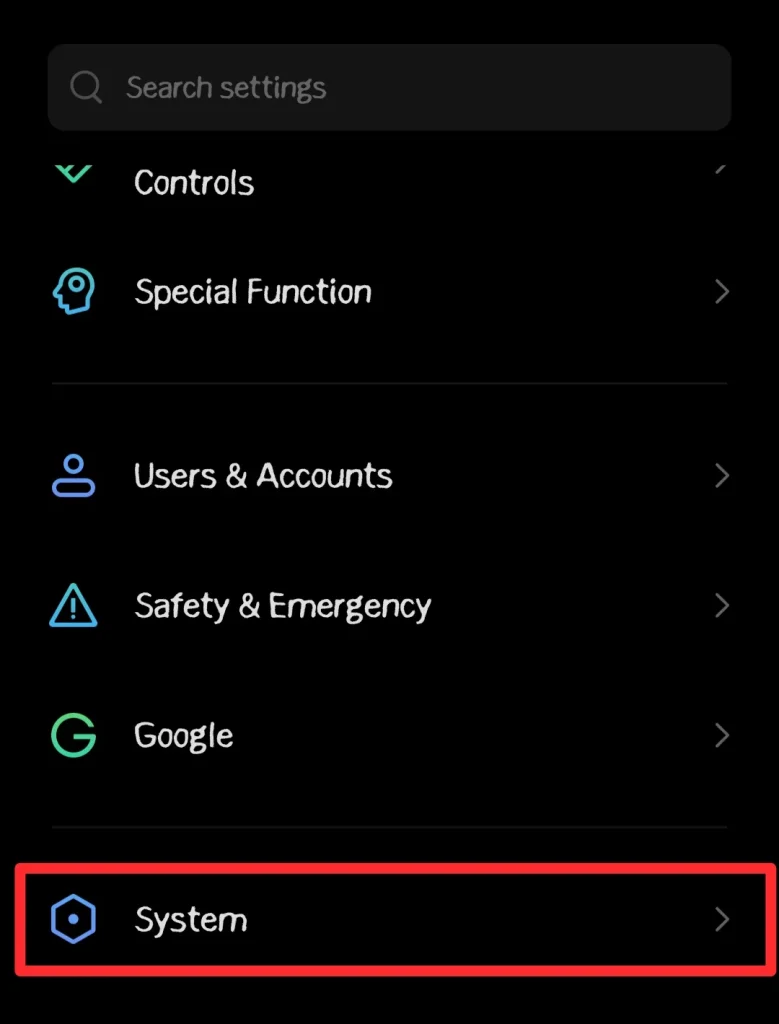
  • Go to System.
Go to System
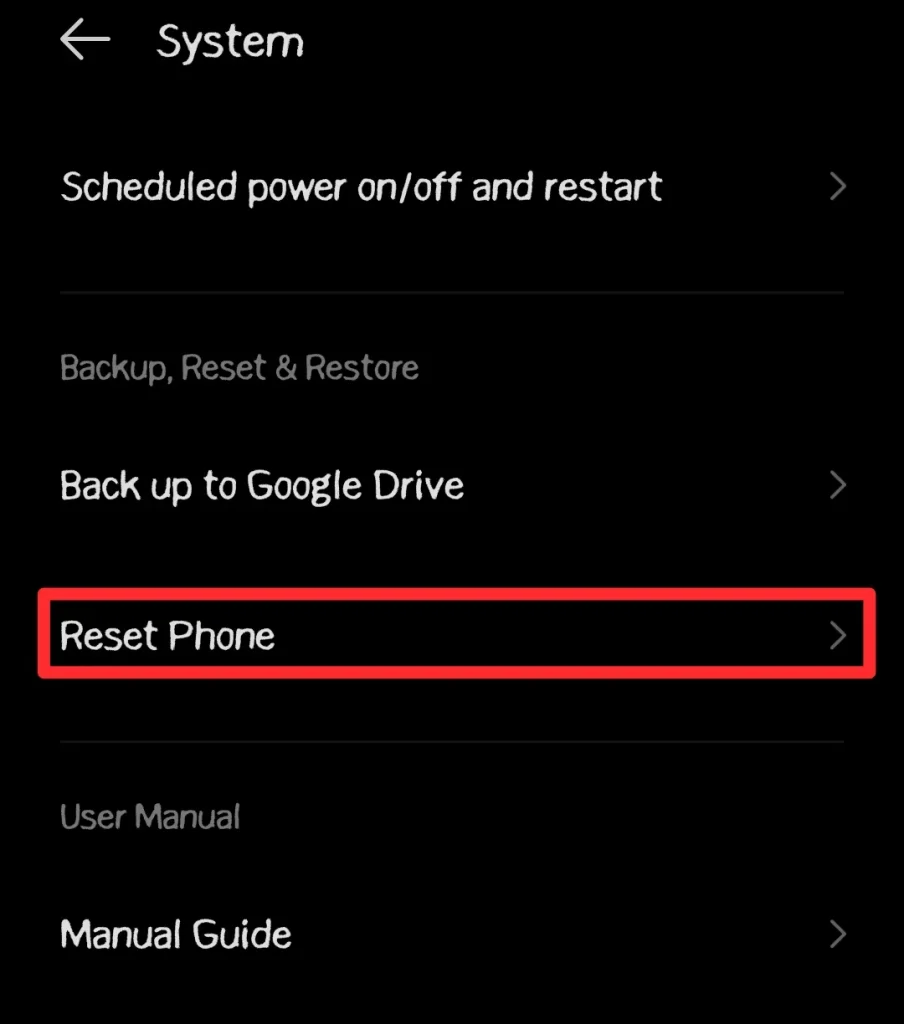
  • Now, choose the Reset Options.
choose the Reset Options
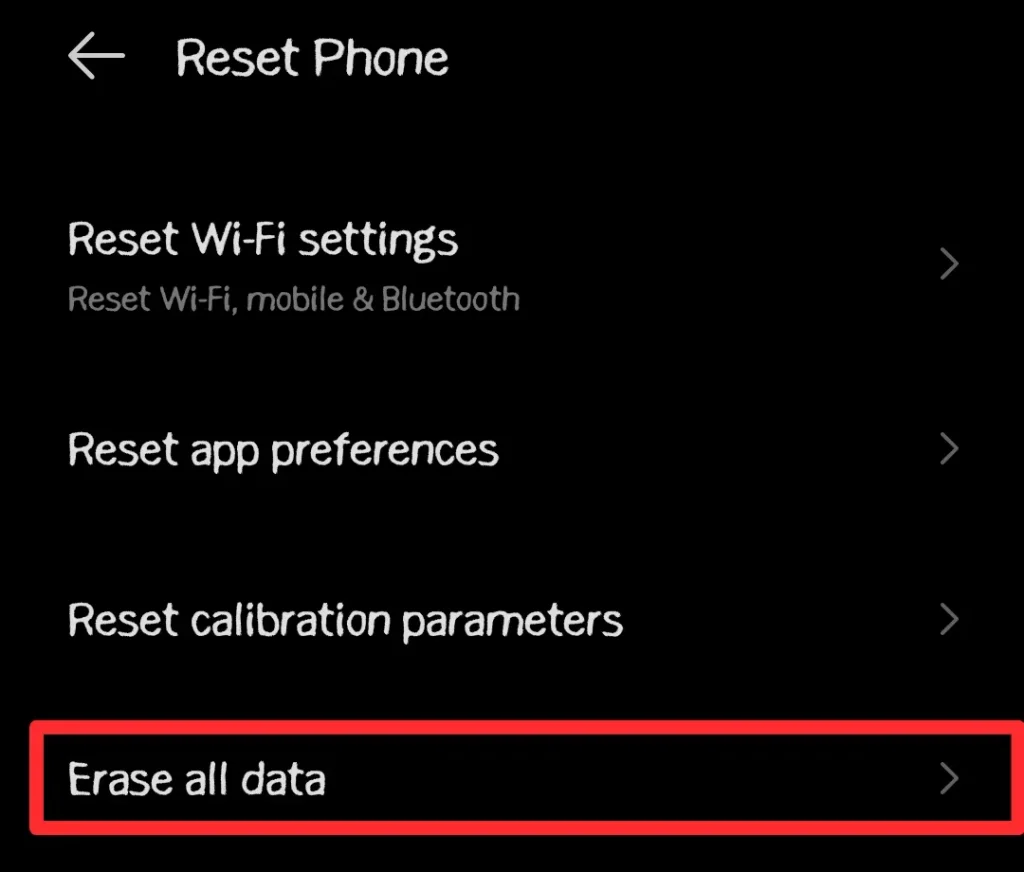
  • Select the “Factory Data Reset” or “Erase All Data” option.
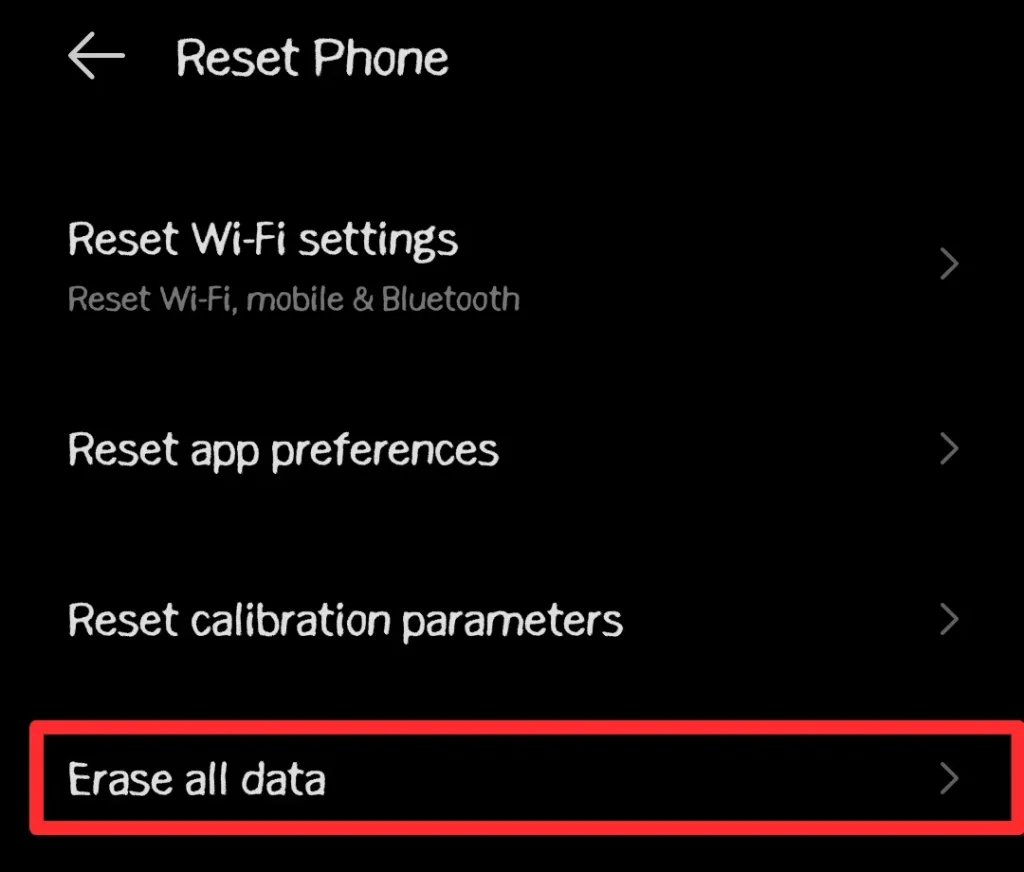
Erase All Data
  • Confirm and allow the process to complete.

Once done, your device should boot into normal mode without Safe Mode.

How to Prevent Android from Entering Safe Mode Accidentally?

After learning how to fix the issue, it is wise to prevent it from happening again. Below, I have provided some tactics that I personally implement to avoid my Android smartphone from entering safe mode.

  • Handle Buttons Carefully: Be cautious when pressing multiple buttons during a restart. Accidentally holding the wrong combination can trigger Safe Mode.
  • Keep Apps Verified: Always install apps from trusted sources like the Google Play Store. This reduces the risk of malware forcing your phone into Safe Mode.
  • Update Regularly: Keep your operating system and apps updated. Outdated software can cause unexpected glitches.
  • Use a Quality Phone Case: Sometimes cheap or tight cases press on the volume buttons, causing accidental Safe Mode activation. Invest in a proper case that fits well.

Final Thoughts

These are the details on how to turn off safe mode on Android.

Safe Mode on Android is a helpful tool for troubleshooting problems, but it can feel limiting when you do not need it. If your phone accidentally enters Safe Mode, the good news is that you can usually turn it off by simply restarting the device.

If that does not work, there are several other methods, such as using the notification panel, powering off completely, checking buttons, or uninstalling apps. In extreme cases, a factory reset may be necessary.

When you follow the steps in this guide, you will be able to turn off Safe Mode and get back to normal use without frustration.


Share. Facebook Twitter Pinterest LinkedIn Tumblr Email
Previous ArticleHow to Lock Apps on Android – Step-by-Step Guide to Secure Your Privacy
Next Article Top 10 Popular Bobby Lee Movies and TV Shows
Wajahat Tajamal

Rana Wajahat Tajamal is a passionate sports and games writer who provides in-depth analysis, insights, and updates on various online and field sports. With a keen eye for detail and a love for the game, he delivers engaging content for sports enthusiasts.

Related Posts

How to Login to MySDMC SSO?
Educational Resources

How to Login to MySDMC SSO Portal (Complete Guide 2026)

By Fawad MalikApril 16, 2026
A person editing a video on a laptop at a desk, with social media icons floating around, a camera on a tripod, ring light, mug, notebook, pen, and plant, against a red gradient background.
How-to Guides

Beginner’s Guide to Video Editing for Social Media

By Toby NwazorApril 7, 2026
How to watch Netflix on Apple CarPlay screen using a car infotainment system
Entertainment

How to Play Netflix on Apple CarPlay Using AI Boxes or Mirroring

By Muhammad NomanMarch 24, 2026
Child using tablet with streaming app safety icons and parental controls
How-to Guides

How to Choose a Streaming App for Kids: Parental Controls & Content Filters

By Hammad AliMarch 1, 2026
Roku remote connecting to TV during setup and pairing process
How-to Guides

How to Connect Roku Remote to TV: Setup & Troubleshooting Guide

By Muhammad NomanFebruary 28, 2026
Showing mobile screen and Laptopscreen the options of disney log out safely.
Entertainment

How to LogOut of Disney Plus on TV Safely Without Losing Your Data

By Muhammad NomanFebruary 27, 2026
Add A Comment

Comments are closed.

Don't Miss
Truth Behind Hayden Panettiere and Daughter Kaya Abandonment

Hayden Panettiere Reclaims Her Narrative Over “Heartbreaking” Daughter Rumors

By Fawad MalikMay 12, 2026

In the Spotlight: The global entertainment cycle often moves faster than the truth, and for…

Chelsea Handler Shane Gillis Feud at Kevin Hart Roast

Chelsea Handler and Tom Brady Ignite Viral Chaos at Netflix’s Kevin Hart Roast

May 11, 2026
Digital networking card diagram showing lead generation connections on a professional news graphic

How a Professional Enterprise Networking Card Helps Businesses Generate More Leads 

May 11, 2026
West Wilson Reacts to Ciara Miller's Shocking Allegations

Ciara Miller Ignites Bravo Feud After Accusing West Wilson of Sleeping with Jennifer Fessler

May 9, 2026
Top Posts
How to Become Famous

How to Become Famous? Top 10 Ideas to Start

January 31, 2025
What is a salary package breakdown including basic salary, allowances, bonuses and benefits

What is a Salary Package? Structure, Calculation and Example

March 26, 2026
Top 12 Most Popular TV Shows of All Time

Top 12 Most Popular TV Shows of All Time

February 1, 2026
Net Worth

Net Worth Overview and How to Calculate It

February 4, 2026
Stay In Touch
  • Facebook
  • Twitter
  • Pinterest
  • Instagram
  • YouTube
  • Vimeo

Subscribe to Updates

Get the latest creative news from SmartMag about art & design.

About Us
About Us

At StuffaBlog, we cover celebrity news, entertainment updates, and net worth stories across film, music, sports and digital media. From actors and musicians to influencers, awards, movies, streaming, and lifestyle, it’s all here in one place.

Facebook X (Twitter) Pinterest YouTube WhatsApp
Our Picks
Truth Behind Hayden Panettiere and Daughter Kaya Abandonment

Hayden Panettiere Reclaims Her Narrative Over “Heartbreaking” Daughter Rumors

May 12, 2026
Chelsea Handler Shane Gillis Feud at Kevin Hart Roast

Chelsea Handler and Tom Brady Ignite Viral Chaos at Netflix’s Kevin Hart Roast

May 11, 2026
Digital networking card diagram showing lead generation connections on a professional news graphic

How a Professional Enterprise Networking Card Helps Businesses Generate More Leads 

May 11, 2026
Most Popular
Stream4u

Stream4u Review 2026: Features, Safety, Legality & Alternatives Explained

April 20, 2026
Illustrated characters networked together on a red background for an article explaining the definition of genre.

What Is Genre? Definition, Types, and Examples

April 11, 2026
How to watch Netflix on Apple CarPlay screen using a car infotainment system

How to Play Netflix on Apple CarPlay Using AI Boxes or Mirroring

March 24, 2026
  • Home
© 2006 - 2026 Stuffablog.com - All rights reserved.

Type above and press Enter to search. Press Esc to cancel.